The solution is adding an image button at the top-left corner of your viz. With a single touch on the button, user will be able to preview the entirety of the target viz.
Try the image button in this viz on your phone: https://goo.gl/yqYDBv or click the image below to access the viz.

1.Publish your initial viz (without image button) to the Tableau Public server first and get the URL of the viz, such as the one below (ignore the string starting with ? and after.)
https://public.tableau.com/views/MexicoIntentionalHomicideRate2010-2017/MexicosIntentionalHomicideRate2010-2017
2.Create the image URL by attaching the following string to the above URL.
.png?:showVizHome=no
The resulting image URL will be
https://public.tableau.com/views/MexicoIntentionalHomicideRate2010-2017/MexicosIntentionalHomicideRate2010-2017.png?:showVizHome=no
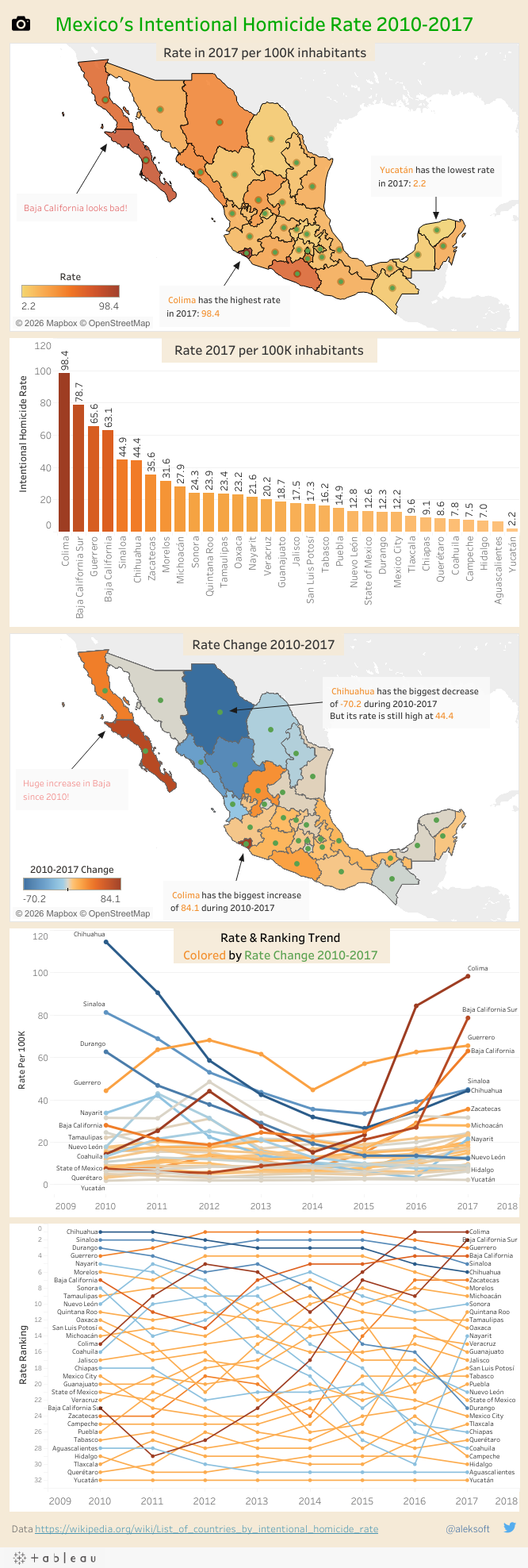
Give it a test before you go further.
3.Create an image object in dashboard with this image:

4.Fill the URL of the image object with the image link in Step 2.
That's it. Publish the viz again. And test the button.
On enterprise Tableau server or Tableau online, just add .png to the URL of your target viz. This will make the preview of any viz on phone a bit easier.
Let us know if this works for you by leaving comments.
No comments:
Post a Comment